
Designing a Smaller File Format (s.gf)

Introduction
I've always been interested in how file formats like PNG, SVG, and WAV are designed and implemented. A few months ago, I finally decided to try and tackle creating a file format of my own. Going in to this, I had a few goals:
- Create a file format that actually stores data (crazy, right?).
- Attempt to optimize and shrink down these file sizes as much as possible.
- Create a format that is smaller than PNG.
I thought the first two would be very easy to achieve, but I wasn't sure how to achieve that last goal. However, that was not my main concern at the beginning. First, I had to actually create a working file encoding and decoding system.
This article is not going to be a step-by-step tutorial. Instead, it's going to be a general write-up of my rationale and implementation of my file format, SGF (which stands for Simple Graphics Format). More specifics can be found on the official product page, but I did place a few restrictions on this format:
- We have a maximum palette size of 256 colors. Why I picked this limit will make sense later on.
- I have always preferred lossless file formats, so SGF is similarly lossless.
- I would like the specifications to be fairly straightforward, so a simple plan of attack was used.
Some of these limitations will be deal breakers for certain use cases. I primarily draw and use pixel art with a limited color palette, so they worked out fine for me. However, I understand that this won't work for everyone.
Environment
We're getting close to actually implementing this, but I wanted to briefly go over my development environment for this project.
First of all, I used Visual Studio Code as it's easily what I'm most comfortable using. For the same reason, I wrote all the code in Python, my best language. I have some plans to port it to C/C++, but that's a project for another day. Since I needed a way to load and save image files, I decided to use the Pillow library. Pillow's Image class comes with some helpful functions (such as getting the colors in an image), and allows us to represent an image as a series of pixels.
Python - Using Pillow
from PIL import Image
import numpy as np

# load an image
image = Image.open('file_path.png')

# get the size and pixel data
size = image.size
pixels = image.getdata()

# get the colors
colors = image.getcolors()

# convert pixels to a numpy array with 8-bit elements
pixels = np.array(pixels, dtype=np.uint8)
Since we're working with binary data, we also need a way to read, write, and store this data. Luckily, this is very easy to do in Python. In order to store a stream of binary data, we can use the bytearray object:
Python - Encoding
# store the current data stream
data = bytearray()

# open file in write mode (wb => write binary)
with open('file_name.sgf', 'wb') as file:
    # write the binary data
    file.write(data)
Python - Decoding
# pointer to store the current location
bp = 0
data = None

# open file in read mode (rb => read binary)
with open('file_name.sgf', 'rb') as file:
    data = file.read()
Then, to parse the binary data we can use the built-in struct module. I'd suggest reading the official documentation if you're curious, but you likely won't need to for this article. Also, in order to ease the process of development I created a helper function to parse the data:
Python - Parse Bytes Method
def parse_bytes(format):
    nonlocal bp

    # decode
    out = struct.unpack(format, data[bp:bp+struct.calcsize(format)])
    bp += struct.calcsize(format)

    # if there's only 1 element, just return it
    if len(out) == 1:
        return out[0]
    # else, return all elements
    return out
This function takes in a format, and returns either a single value, or an array of values. You can see how to create a format string in the documentation, but for our purposes we will be using strings containing B and H which stand for unsigned bytes and unsigned shorts, respectively.
Version 1 - Simplicity
Version 1 starts very simply as it was a way to make sure I actually knew what I was doing. For this, I took the very naive approach of storing the color data of each pixel individually. Along with the color data, I also needed to store how big the image was, so I did that as well.
Implementation
In order to encode and decode an image, we only need to store the image size and the pixel data.
Encoding
To encode our image, we need to store two things: the size and pixel data. We accomplished this in the previous section, storing the data in the size and pixels variables, respectively. To place this into a binary file, we simply need to append them to our data array, and then write that array to a file. For SGF, we limit the size of an image to 65,535 x 65,535 (the range of an unsigned short).
Python
# ...initialize data

# store size
data += struct.pack('HH', size[0], size[1])

# store pixel data (provided through numpy arrays)
data += pixels.tobytes()

# ...write to file
Decoding
Now that we have some data to decode, we shall do so! Similarly to encoding, this process is very straightforward. All we need to do is use our parse_bytes method to parse our size, and then for each pixel, we need to parse 4 bytes of data corresponding to the red, green, blue, and alpha values for each pixel.
Python
# ...read data

# parse size
size = parse_bytes('HH')

# parse pixel data (again using numpy)
pixels = np.frombuffer(data, offset=bp, dtype=uint8)

# construct image
image = Image.frombytes(mode="RGBA", size=size, data=pixels)
The last line of the decoding step is one of the most important. It's also why we need to have the pixel data in the form of a numpy array. I won't get into the details, but the frombytes method requires an object that supports the __array_interface__ (which comes from numpy).
Benchmarks
At the end of each version, I'll go over where we stand in regards to our file size, and how it compares to the PNG equivalent. In the beginning, we will see our files are much larger than their PNG counterparts, but we'll slowly close this gap.
| File Name | Image Size | Palette Size | SGF Generation Time | PNG Size | SGF Size | Difference |
|---|---|---|---|---|---|---|
| forest_5.png | (630, 360) | 80 colors | 68 ms | 91.81 KB | 907.2 KB | 988.14% |
| forest_6.png | (630, 360) | 76 colors | 66 ms | 90.76 KB | 907.2 KB | 999.56% |
| ground_map.png | (480, 540) | 9 colors | 75 ms | 9.77 KB | 1.04 MB | 10,607.78% |
| diagonal.png | (64, 64) | 127 colors | 2 ms | 374 B | 16.39 KB | 4,381.82% |
| horizontal.png | (64, 64) | 64 colors | 3 ms | 219 B | 16.39 KB | 7,483.11% |
| random.png | (64, 64) | 255 colors | 2 ms | 5.99 KB | 16.39 KB | 273.82% |
| vertical.png | (64, 64) | 64 colors | 2 ms | 219 B | 16.39 KB | 7,483.11% |
| white_square.png | (512, 512) | 1 colors | 74 ms | 2.21 KB | 1.05 MB | 47,425.60% |
| battle.png | (600, 270) | 12 colors | 47 ms | 10.95 KB | 648.0 KB | 5,915.68% |
| overworld.png | (230, 120) | 10 colors | 8 ms | 6.11 KB | 110.4 KB | 1,806.05% |
| deco_flower.png | (420, 240) | 9 colors | 28 ms | 7.14 KB | 403.2 KB | 5,645.53% |
| deco_leaf.png | (420, 240) | 6 colors | 31 ms | 4.96 KB | 403.2 KB | 8,120.93% |
| green_battle.png | (420, 240) | 10 colors | 27 ms | 8.06 KB | 403.2 KB | 4,999.43% |
| green_overworld.png | (60, 20) | 5 colors | 1 ms | 410 B | 4.8 KB | 1,171.71% |
| Average | - | 52 colors | 31.0 ms | 17.07 KB | 424.15 KB | 7,664.45% |
So far there's not really much to say. Besides the random.png image, the closest test image we have is still 10 times larger than its PNG counterpart.
Version 2 - Palettes
When looking to reduce the file size at this point, I thought about where redundant data might lie. For file formats, this is a very important thing to think about and is ultimately how we will reduce the size in each version. The first spot where I saw redundant data was how often we repeat the colors we use. Especially for a limited color palette, we can find ourselves using the same color over and over.
Instead of storing each of these colors as a unique 4-byte color value, what if we stored a pointer to this color value? This is the line of reasoning I used to get to this second version:
- Find each unique color in the image and store them in a linear array (our palette).
- For each color in the image, find the index of the color it uses, and store that instead of the raw color.
Image - Green Slime
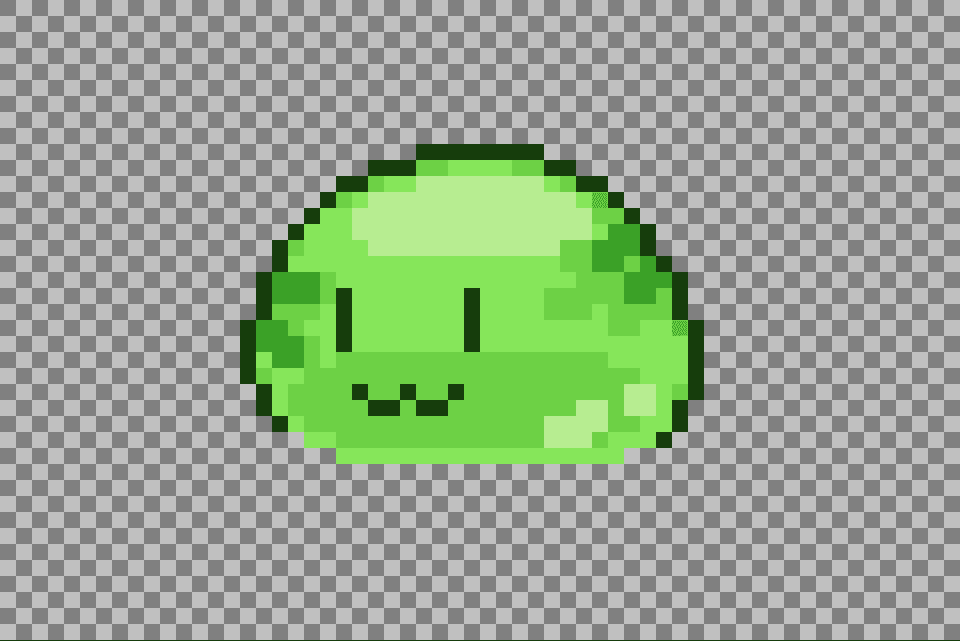
Description
We can see in this image, we are using the following colors:
- Transparent: #00000000
- Green 1: ■ #b8ed92ff
- Green 2: ■ #86e65aff
- Green 3: ■ #6dd144ff
- Green 4: ■ #3ba126ff
- Green 5: ■ #173f0bff
That's only 6 unique colors! Having to only store a single instance of each color could have massive file size improvements!
Since we stored every color we used in the image, we can reduce the space each pixel uses to just 1 byte each. However, this does come with a drawback. As mentioned in the beginning, the SGF file format has a limited color palette size. Since we cut each index to just 1 byte, we can have at most 256 unique indexes - which is where the 256-color palette comes from. For my use case, this doesn't affect much because most of the time I don't get anywhere near 256 unique colors.
Implementation
This version changes how we will encode and decode colors, since we can't just push the color values into one big list. Instead, we need to do a little more work before we can actually read and write the color values.
Encoding
For the encoding side of this version, we first need to find all the unique colors within our image. Luckily, as shown previously, Pillow includes the method getcolors, which returns all the unique colors in an image. We will get these colors and place them into a dictionary to allow for quick lookup. Additionally, we need to place how many colors we have, and then all the colors at the top of the file.
Python
# note: getcolors actually returns: [# of pixels using the color, color]
# so we will need to isolate just the color
colors = [color[1] for color in image.getcolors()

# store how many colors are in the palette
data += struct.pack('B', len(colors))
# store each color using numpy
data += np.array(colors, dtype=uint8).tobytes()

# convert the colors list into a palette dictionary
palette = {colors[i]: i for i in range(len(colors))}
Once we have all the colors in our palette, we can then iterate through each pixel, lookup the index, and add that index to our data stream.
Python
# we use a list since we don't need tobytes
pixels = list(image.getdata())

for pixel in pixels:
    # append each palette index
    data += palette[pixel]
Decoding
Decoding is very similar; however, we don't necessarily need a dictionary for the palette. After we parse the size, we then need to add code to parse the palette. We needed a dictionary for the encoding step since we were going from color to index. However, since we are now going from an index to a color, we can just look up the color values using the same index in the array. Other than that, the process is very similar.
Python
# ...parse the size

color_count = parse_bytes('B')

palette = []

# load the palette
for i in range(color_count):
    palette.append(parse_bytes('BBBB'))

# for each pixel, retrieve the color from the index
pixels = []
pixel_count = size[0] * size[1]

for i in range(pixel_count):
    pixels.append(palette[parse_bytes('B')])

# ...build the image
Once we have all the pixels parsed, we can then build the image in the same way as before!
Benchmarks
Looking at the results, we can see that we have cut our file sizes to 25% of their original size! Thinking about the changes we've made, this makes a lot of sense. We cut down each pixel from 4 bytes to just 1 byte - the same 25% reduction. It turns out that storing the color palette is negligible in most cases (at least in my test images). However, we're still a good ways away from being equal to the PNG sizes.
| File Name | Image Size | Palette Size | SGF Generation Time | PNG Size | SGF Size | Difference |
|---|---|---|---|---|---|---|
| forest_5.png | (630, 360) | 80 colors | 43ms | 91.81 KB | 227.12 KB | 247.39% |
| forest_6.png | (630, 360) | 76 colors | 45ms | 90.76 KB | 227.11 KB | 250.23% |
| ground_map.png | (480, 540) | 9 colors | 48ms | 9.77 KB | 259.24 KB | 2,652.35% |
| diagonal.png | (64, 64) | 127 colors | 1ms | 374 B | 4.61 KB | 1,232.35% |
| horizontal.png | (64, 64) | 64 colors | 2ms | 219 B | 4.36 KB | 1,989.50% |
| random.png | (64, 64) | 255 colors | 1ms | 5.99 KB | 5.12 KB | 85.56% |
| vertical.png | (64, 64) | 64 colors | 1ms | 219 B | 4.36 KB | 1,989.50% |
| white_square.png | (512, 512) | 1 colors | 50ms | 2.21 KB | 262.15 KB | 11,856.76% |
| battle.png | (600, 270) | 12 colors | 29ms | 10.95 KB | 162.05 KB | 1,479.40% |
| overworld.png | (230, 120) | 10 colors | 5ms | 6.11 KB | 27.64 KB | 452.23% |
| deco_flower.png | (420, 240) | 9 colors | 18ms | 7.14 KB | 100.84 KB | 1,411.94% |
| deco_leaf.png | (420, 240) | 6 colors | 18ms | 4.96 KB | 100.83 KB | 2,030.80% |
| green_battle.png | (420, 240) | 10 colors | 17ms | 8.06 KB | 100.84 KB | 1,250.40% |
| green_overworld.png | (60, 20) | 5 colors | 1ms | 410 B | 1.23 KB | 298.78% |
| Average | - | 52 colors | 19.93ms | 17.07 KB | 106.25 KB | 1,944.80% |
In many optimization methods, most changes will cause an increase in efficiency. However, there will also be cases where an optimization may reduce efficiency. This optimization will reduce the size of most common images. However, if an image never uses the same color twice, then we will end up increasing that file's size overall. This is just a tradeoff that we have with optimization.
Version 3 - Stacking
Now that we have some easier optimizations out of the way, we can start to think a little more about how this format will be used specifically. For me, I would likely use it for game sprites and general pixel art images. Typically, game sprites will have a lot of empty space surrounding the main sprite.
Image - Green Slime (Empty Space)
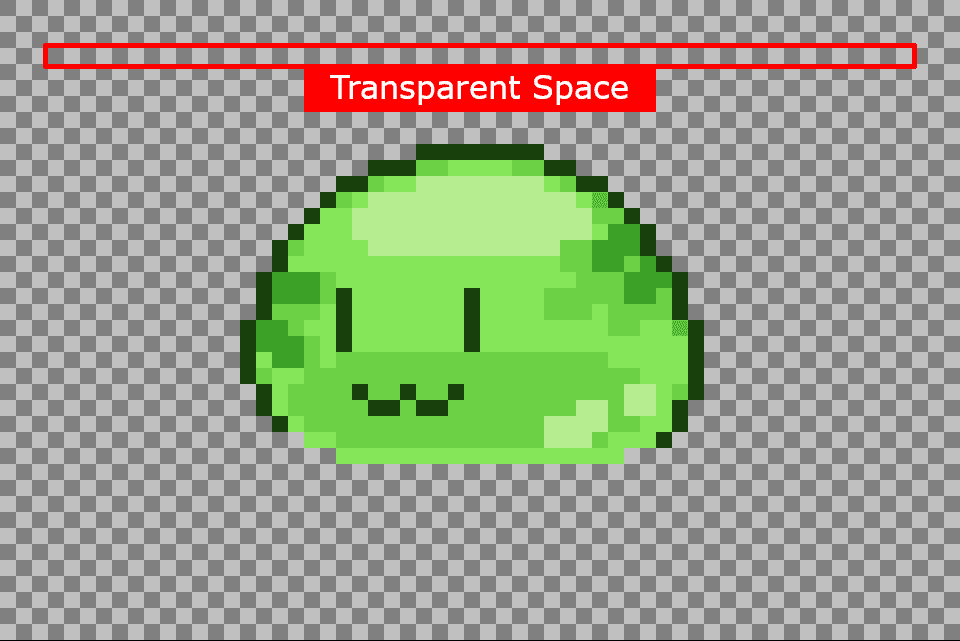
Image - Green Slime (Filled Space)
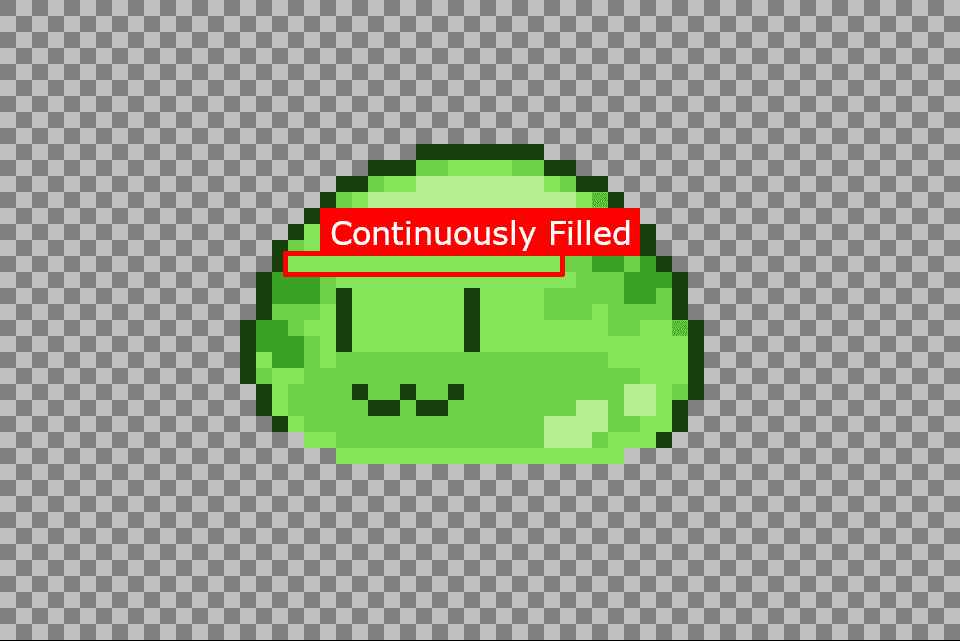
And this doesn't even have to be empty space! With my style, and with a lot of pixel art in general, a lot of neighboring pixels are also the same colors. If we could group, or stack, these lines of pixels, then we could really reduce the amount of space we use on average. For now, primarily due to ease of implementation, we will look at horizontal lines of pixels. When we find a stretch of pixels that use the same color, we can group them into one chunk of information, instead of a bunch of individual indexes.
Implementation
It's at this point is where the encoding and decoding process gets a little more complicated. For encoding, we need to keep track of how many consecutive pixels we see. For decoding, we need to make sure we repeat each pixel the correct amount of time.
Encoding
To encode our image following this new optimization, we need to keep track of the previous pixel, and how many of that pixel we've seen directly before it. For this, I created the reps and previous variables. At each step, we will compare the current pixel to the previous pixel. Based on the results, we will do one of the following:
- If the colors are equal, then we will increment the repetition counter by 1
- If the repetition counter is greater than or equal to 256, then we will insert that chunk and reset the repetition counter.
- If the colors are not equal, then we will append the current chunk, reset the repetition counter, and update the previous color to be the current color
Python
previous = None
reps = 0

for pixel in pixels:
    if previous != palette[pixel]:
        # add previous chain (if it exists)
        if previous != None:
            data += struct.pack('BB', reps, previous)
        reps = 1
    else:
        # Start a new line of repetition
        if reps >= 255:
            data += struct.pack('BB', reps, previous)
            reps = 0
        reps += 1

# add the final chain
data += struct.pack('BB', reps, previous)
Decoding
Now that we have everything set up, we can now work on decoding the SGF file. Luckily, this is much easier than encoding it. At each step, we now need to parse two bytes of data: the repetition value, and the palette index. Then for each repetition, we will append the color found at the specified index. However, we also need to worry more about the data size than before. In previous versions, we knew that we had width * height chunks of data in the main file body. However, since we are now grouping pixels together, we will need to manually track this.
Python
# previous version
for i in range(pixel_count):
    # ...

# new version
i = 0
while i < pixel_count:
    # ...
In order to do this, we initialize a pointer. Then, once we parse the repetition and color values, we will increase this pointer by the number of repetitions.
Python
i = 0

while i < pixel_count:
    reps, index = parse_bytes('BB')

    # add the color 'reps' times
    pixels += [palette[index] for _ in range(reps)]

    i += reps

# ...build the image
The reason we need to cap the repetitions at 256 is the same reason we needed to cap the palette size: we want to store the value in a single byte. We could increase how much space we give the repetition value, but that would likely just cause the overall file size to increase since most images won't reach 256 repetitions to begin with.
Benchmarks
Overall, it turns out that this optimization reduces our file size to 25% of the previous version's size. I don't have a rationale this time, and the results will likely depend heavily on the test images used. Regardless, this is another massive reduction! And if we look at the data, we can see that in some test images, we have a result that ends up smaller than the equivalent PNG! This is very exciting, but there one more tweak before I'll call it quits.
| File Name | Image Size | Palette Size | SGF Generation Time | PNG Size | SGF Size | Difference |
|---|---|---|---|---|---|---|
| forest_5.png | (630, 360) | 80 colors | 61ms | 91.81 KB | 136.66 KB | 148.85% |
| forest_6.png | (630, 360) | 76 colors | 49ms | 90.76 KB | 142.65 KB | 157.17% |
| ground_map.png | (480, 540) | 9 colors | 45ms | 9.77 KB | 9.23 KB | 94.46% |
| diagonal.png | (64, 64) | 127 colors | 2ms | 374 B | 8.71 KB | 2,327.54% |
| horizontal.png | (64, 64) | 64 colors | 2ms | 219 B | 8.45 KB | 3,859.82% |
| random.png | (64, 64) | 255 colors | 2ms | 5.99 KB | 9.18 KB | 153.40% |
| vertical.png | (64, 64) | 64 colors | 1ms | 219 B | 389 B | 177.63% |
| white_square.png | (512, 512) | 1 colors | 44ms | 2.21 KB | 2.07 KB | 93.49% |
| battle.png | (600, 270) | 12 colors | 28ms | 10.95 KB | 18.4 KB | 167.98% |
| overworld.png | (230, 120) | 10 colors | 6ms | 6.11 KB | 15.96 KB | 261.10% |
| deco_flower.png | (420, 240) | 9 colors | 16ms | 7.14 KB | 12.06 KB | 168.87% |
| deco_leaf.png | (420, 240) | 6 colors | 18ms | 4.96 KB | 7.9 KB | 159.09% |
| green_battle.png | (420, 240) | 10 colors | 17ms | 8.06 KB | 12.27 KB | 152.08% |
| green_overworld.png | (60, 20) | 5 colors | 1ms | 410 B | 397 B | 96.83% |
| Average | - | 52 colors | 20.86ms | 17.07 KB | 27.45 KB | 572.74% |
Similarly to the previous version, this will reduce the file size of most images. However, some images, such as random and diagonal, got noticeably larger.
Version 4 - Compression
This version is more like a cherry on top rather than anything major. Most file formats will use compression algorithms to get their file sizes as small as they can. In my original implementation, I thought that this would be considered “cheating” since I didn't know that the PNG format uses the DEFLATE algorithm. However, I'm well aware of this fact now and feel no guilt towards using compression for SGF.
While PNG uses the DEFLATE algorithm, we will be using the GZIP algorithm. GZIP is based off the DEFLATE algorithm, so we're on a pretty even playing field.
Implementation
As mentioned before, this requires less effort and is more of an extra little addition. All we need to do is import Python's built-in gzip module:
Python
import gzipEncoding
To encode our data using GZIP, we just need to use the gzip module. Before we write our data to file, we just pass it thought gzip.compress.
Python
with open('file_name.sgf', 'wb') as file:
    file.write(gzip.compress(data))
Decoding
Similar to encoding, decoding is insanely simple. Instead of using python's built-in open method, we can use gzip.open to load the file, read the data, and decompress it all in one go.
Python
with gzip.open('file_name.sgf', 'rb') as file:
    data = file.read()
Benchmarks
Despite this being a seemingly simple addition, it has massive changes in our resulting file sizes. So much so that most of our files are now smaller than their PNG equivalents! When I started this project, I did not expect to get to this point, and it still surprises me to see that I ended up at this point.
| File Name | Image Size | Palette Size | SGF Generation Time | PNG Size | SGF Size | Difference |
|---|---|---|---|---|---|---|
| forest_5.png | (630, 360) | 80 colors | 57ms | 91.81 KB | 34.53 KB | 37.61% |
| forest_6.png | (630, 360) | 76 colors | 65ms | 90.76 KB | 34.81 KB | 38.35% |
| ground_map.png | (480, 540) | 9 colors | 42ms | 9.77 KB | 4.89 KB | 50.01% |
| diagonal.png | (64, 64) | 127 colors | 2ms | 374 B | 626 B | 167.38% |
| horizontal.png | (64, 64) | 64 colors | 2ms | 219 B | 340 B | 155.25% |
| random.png | (64, 64) | 255 colors | 2ms | 5.99 KB | 6.04 KB | 100.95% |
| vertical.png | (64, 64) | 64 colors | 1ms | 219 B | 290 B | 132.42% |
| white_square.png | (512, 512) | 1 colors | 44ms | 2.21 KB | 43 B | 1.94% |
| battle.png | (600, 270) | 12 colors | 27ms | 10.95 KB | 3.51 KB | 32.08% |
| overworld.png | (230, 120) | 10 colors | 7ms | 6.11 KB | 2.71 KB | 44.33% |
| deco_flower.png | (420, 240) | 9 colors | 17ms | 7.14 KB | 1.69 KB | 23.63% |
| deco_leaf.png | (420, 240) | 6 colors | 18ms | 4.96 KB | 1.39 KB | 27.94% |
| green_battle.png | (420, 240) | 10 colors | 17ms | 8.06 KB | 2.92 KB | 36.26% |
| green_overworld.png | (60, 20) | 5 colors | 1ms | 410 B | 198 B | 48.29% |
| Average | - | 52 colors | 21.57ms | 17.07 KB | 6.71 KB | 64.03% |
Conclusion
Overall, I'm very happy with how this project went. I ended up being able to shave off much more data than I originally imagined. As I continue to develop the Simple Suite, I want everything to mesh as well as possible. I'm planning on developing various different tools, and I can see this file format being used in a few of them. Until then though, SGF will remain as an example of how effective optimization can be.